

Personal Learning Device (PLD) & Password Reset
Personal Learning Device Initiative
Information for parents
-
Parenting for wellness toolbox (https://go.gov.sg/pfw-toolbox )
-
Bite-size tips on MOE IG (https://go.gov.sg/ig-moeparenting)
-
MOE Cyber Wellness Programme (https://www.moe.gov.sg/education-in-sg/our-programmes/cyber-wellness )
-
Media Literacy Council (https://go.gov.sg/better-internet-sg)
To change DMA option, please email school at zhenghua_ss@moe.edu.sg.
Information for students
General Learning Routines with PLD
Information on student's account
|
Type |
ID |
Password |
|---|---|---|
|
School computer /
|
NRIC or Student iCON email address |
MIMS password |
|
PLD |
Student iCON email address |
MIMS password |
|
Zoom Account /
|
Student iCON email address |
MIMS password |
Information on MIMS Password
-
Please read password policy as shown below:
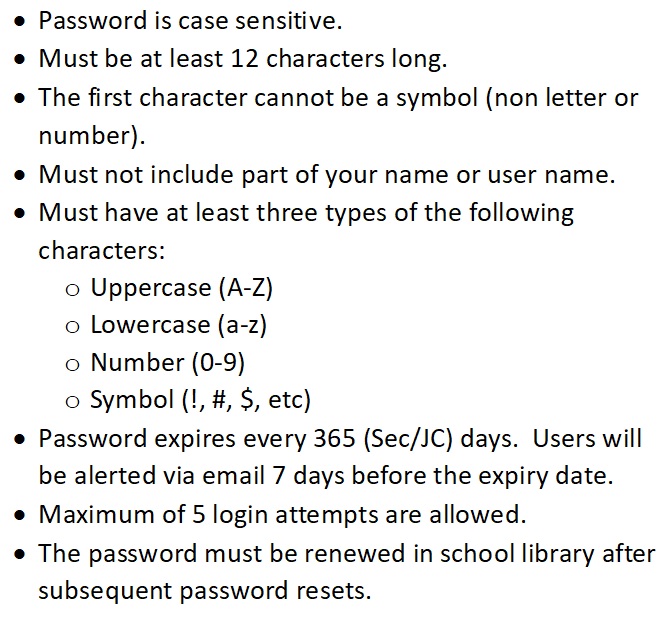
-
To perform MIMS Self-Service Password Reset (SSPR), follow the below steps:
-
Step1:
Go to here and click 'Forgot Password?'. -
Step2:
Type in your username and answer the Challenge Questions that you have set previously. -
Step3:
Once you have correctly answered your challenge questions, you will be able to reset your password. -
Step 4:
Login to your PLD in school (to enable new password to apply on PLD and validate the new password)
-
-
Alternatively, proceed to computer lab 1, 2.30PM to 3.30PM daily, to change your password.
Issues related to MIMS password
1. If you cannot login to your student iCON account, please try the following:
(a) Logout student icon from all devices including your PLD.
(b) If it is still unsolved, please proceed to Computer Lab 1, 2.30PM
to 3.30PM daily for assistance.
2. If you cannot login to your PLD with new password, please proceed to
Computer Lab 1, 2.30PM to 3.30PM daily for assistance.